PROJECT CASE STUDY
Sledge
Construction runs on paper.
A subcontractor’s back office lives in inboxes, spreadsheets and folders of signed PDFs. AP teams retyped vendor bills, chased lien waivers by hand and found out at month end that balances didn’t match.
Nobody had one view of contract, billed, collected and cost per project, and the same invoice arriving from two inboxes could be paid twice.
The goal: one place where every bill, waiver and dollar is tied to the job it came from, and paying is one click.
Colors
#070707#E3B02F#1C1B1A#F4F1EA
Fonts
ABCDEFGHIJKLM
abcdefghijklm 0123456789
14 modules, designed end to end.
- 01Overview
- 02Projects
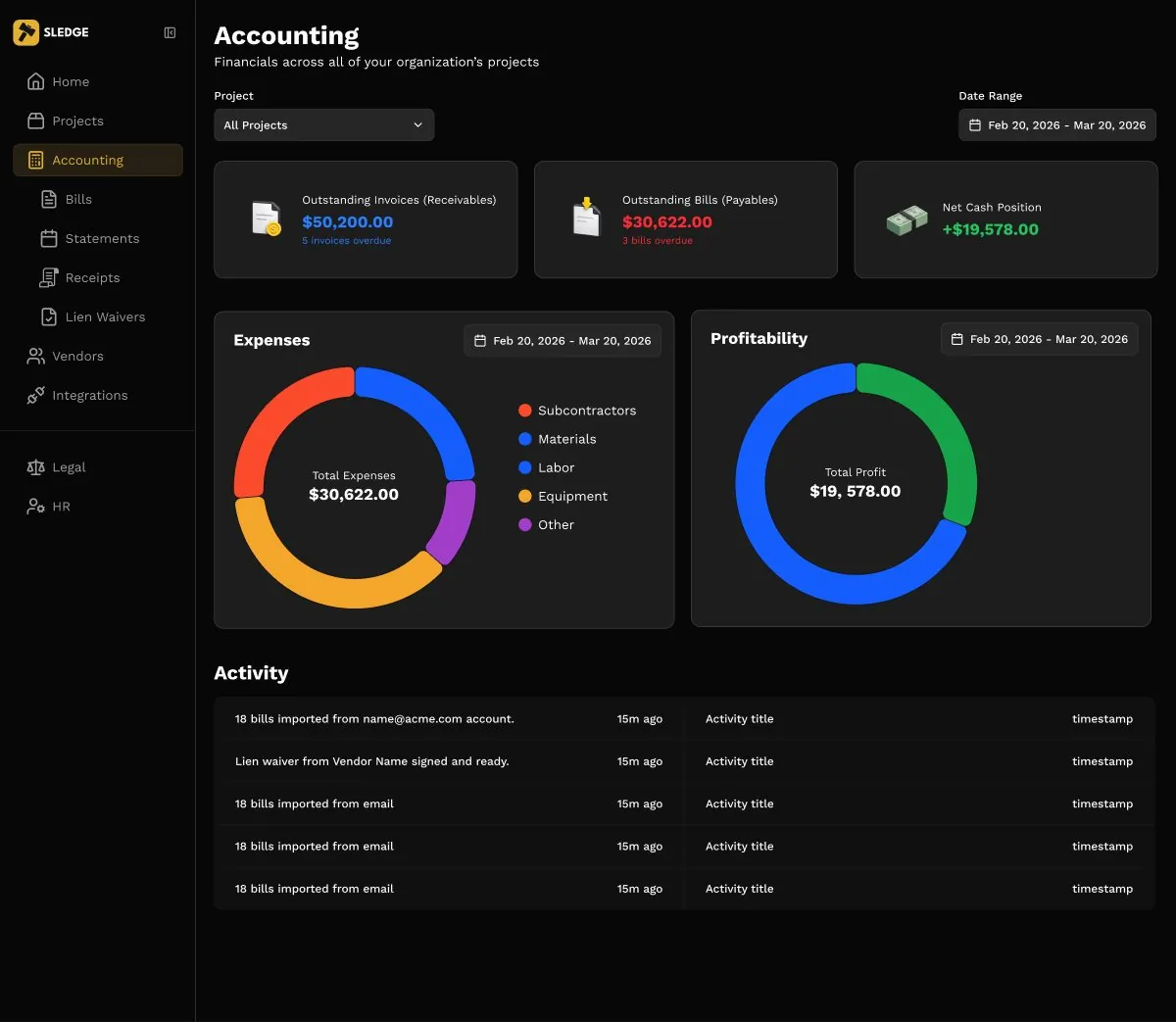
- 03Accounting
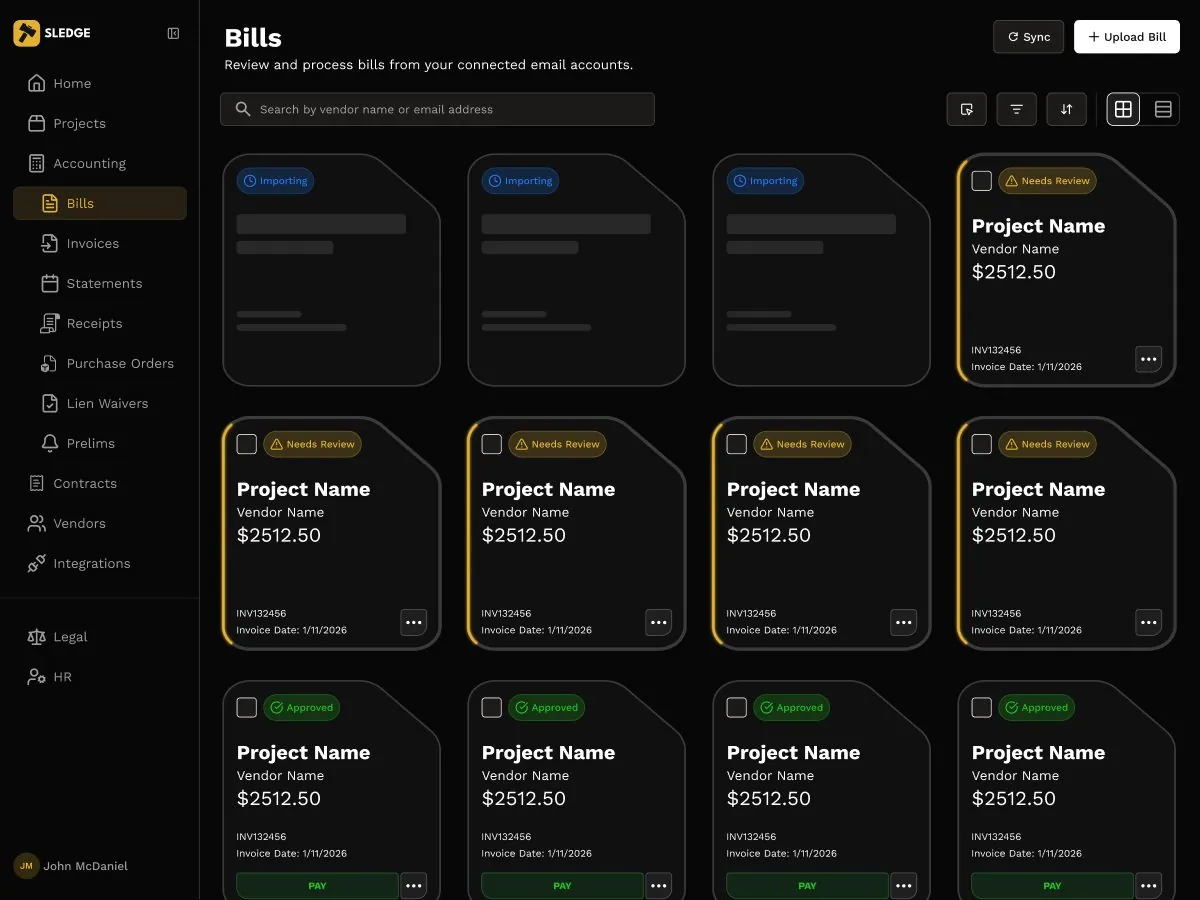
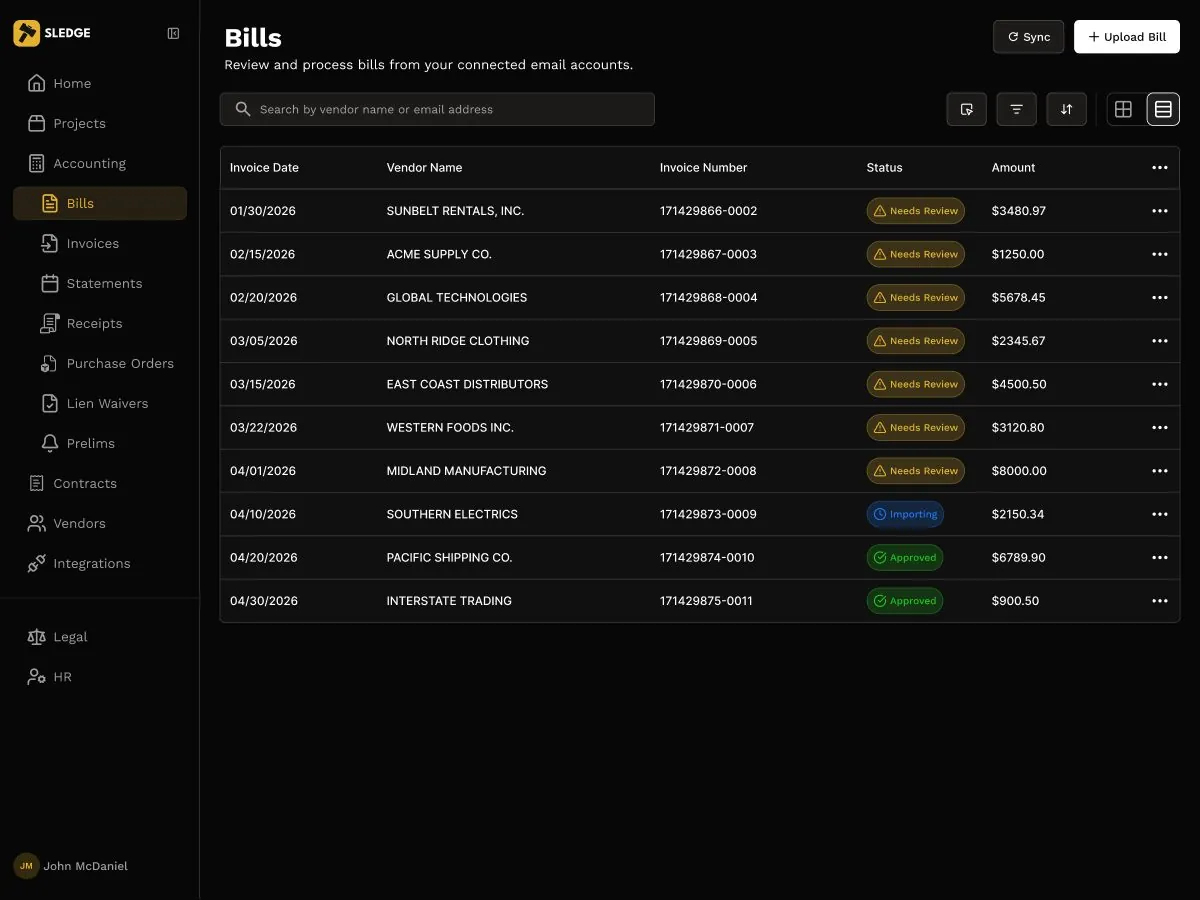
- 04Bills
- 05Invoices
- 06Statements
- 07Receipts
- 08Purchase Orders
- 09Lien Waivers
- 10Prelims
- 11Contracts
- 12Vendors
- 13Integrations
- 14Legal · HR
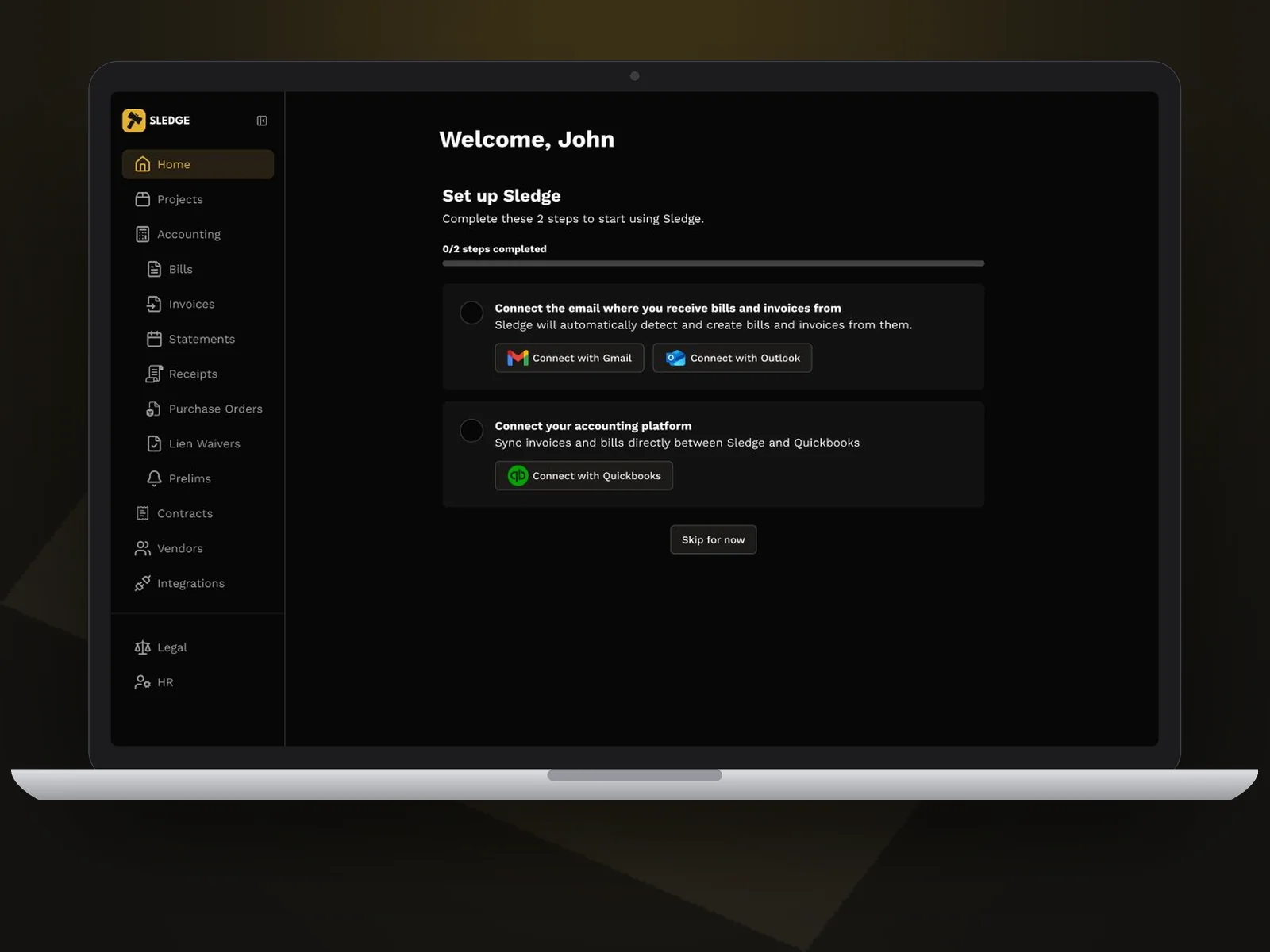
Two connections, six short steps.
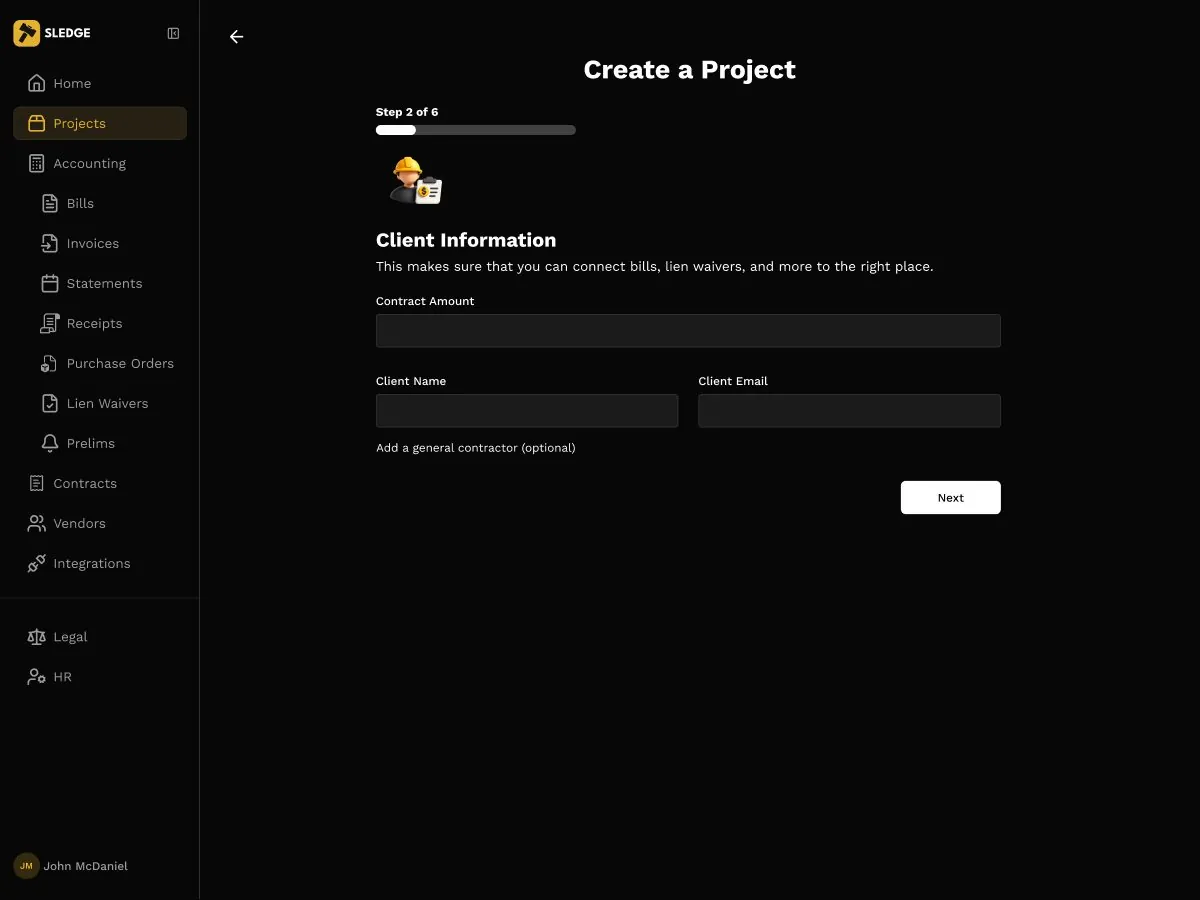
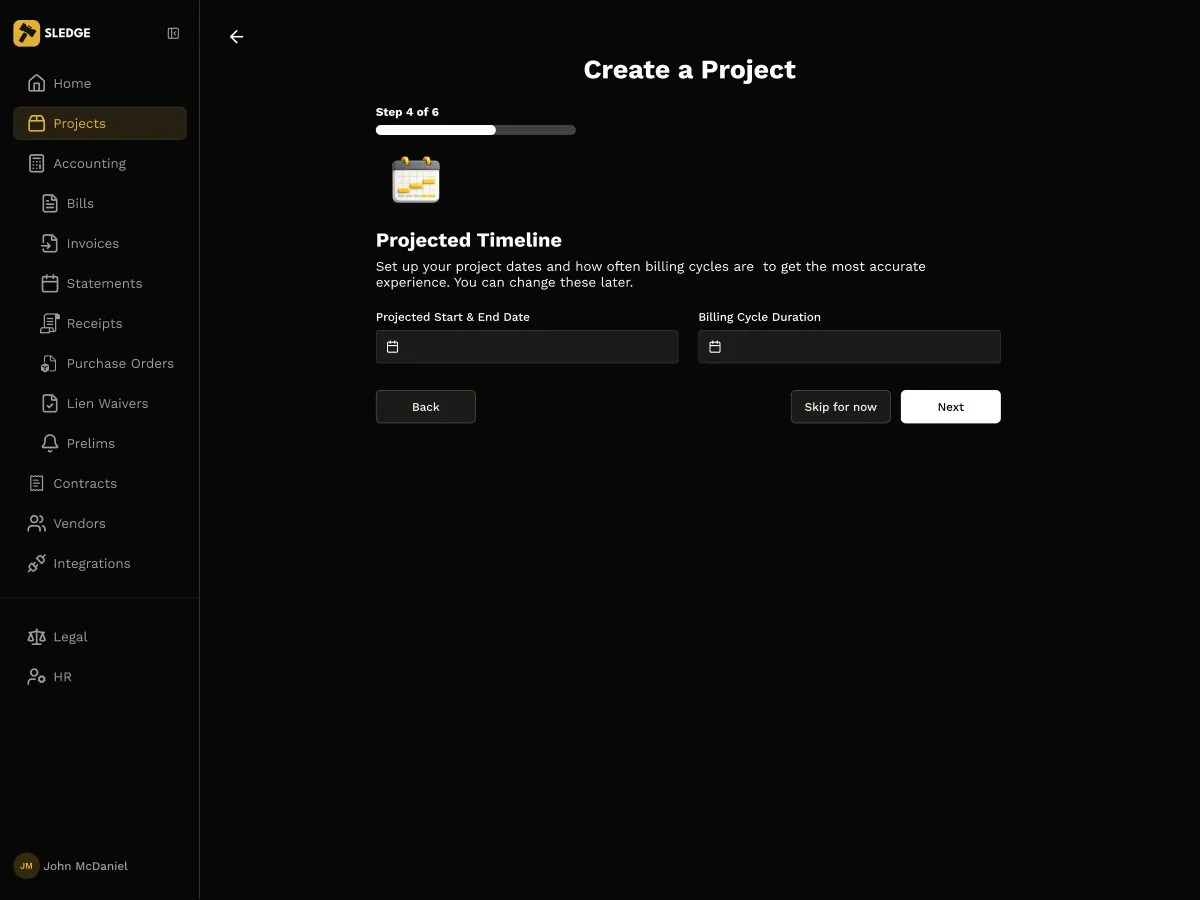
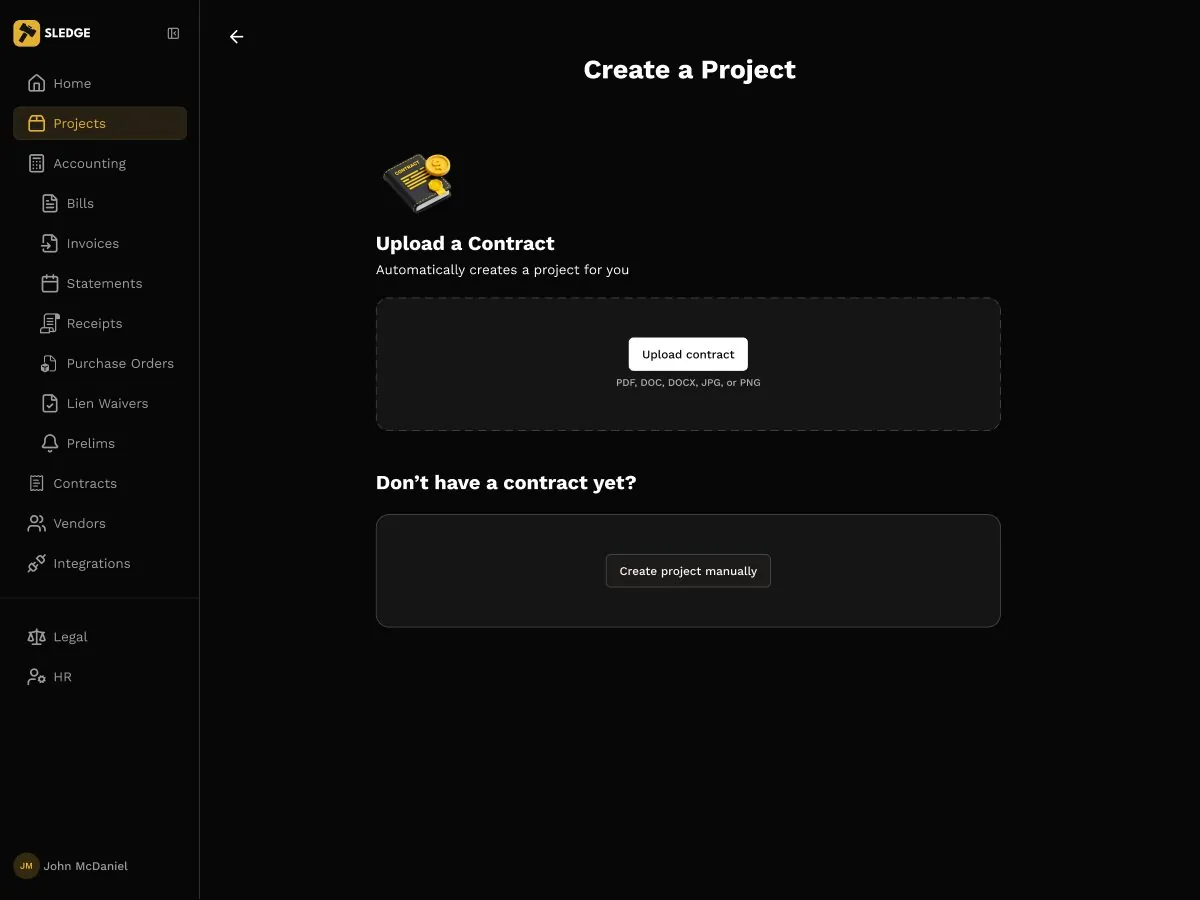
First-time setup asks for only two things: the inbox where bills arrive and the accounting platform. A new project is a six-step wizard, or one upload: drop a signed contract and Sledge fills the project in.
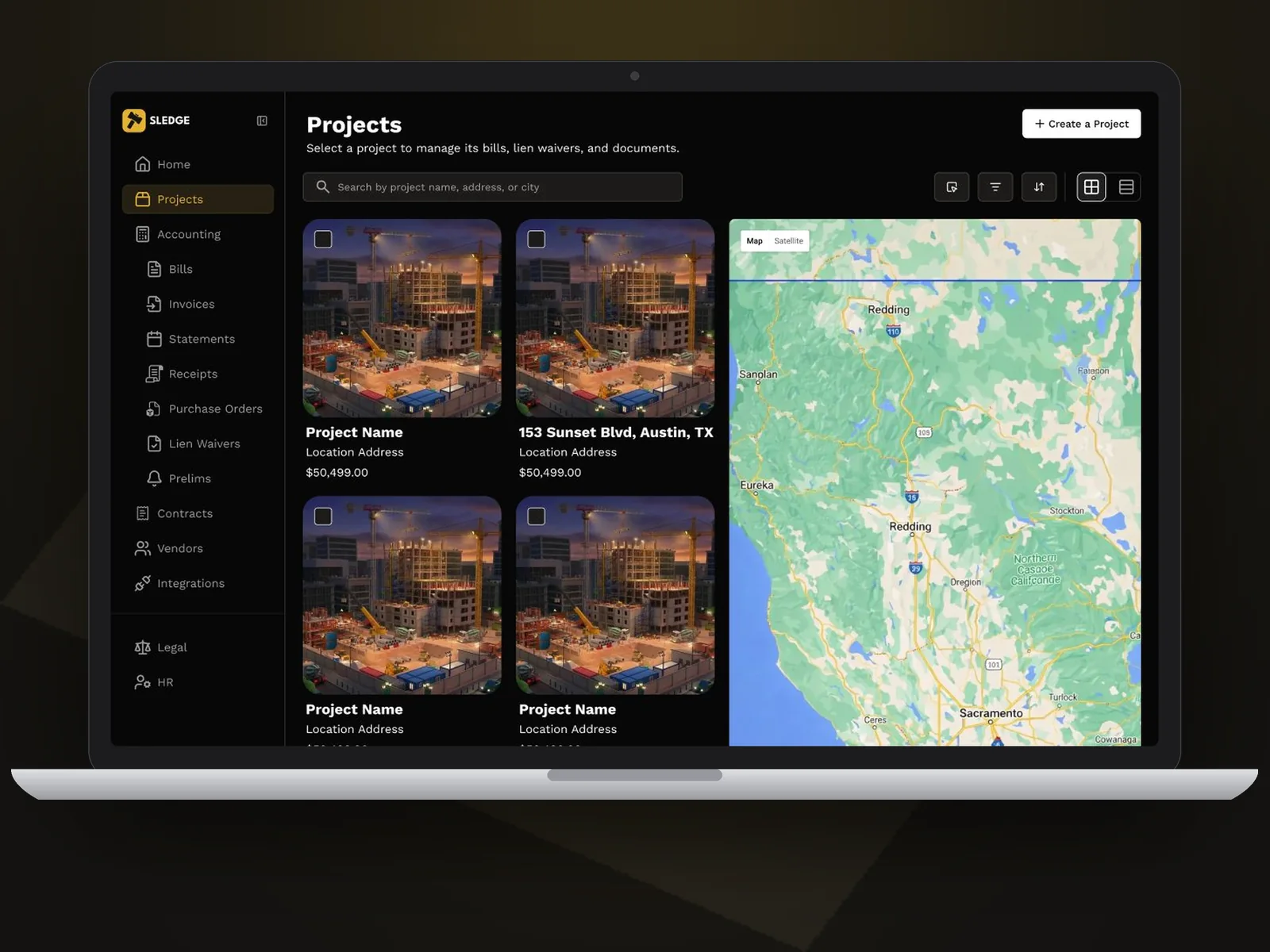
Every job on one map.
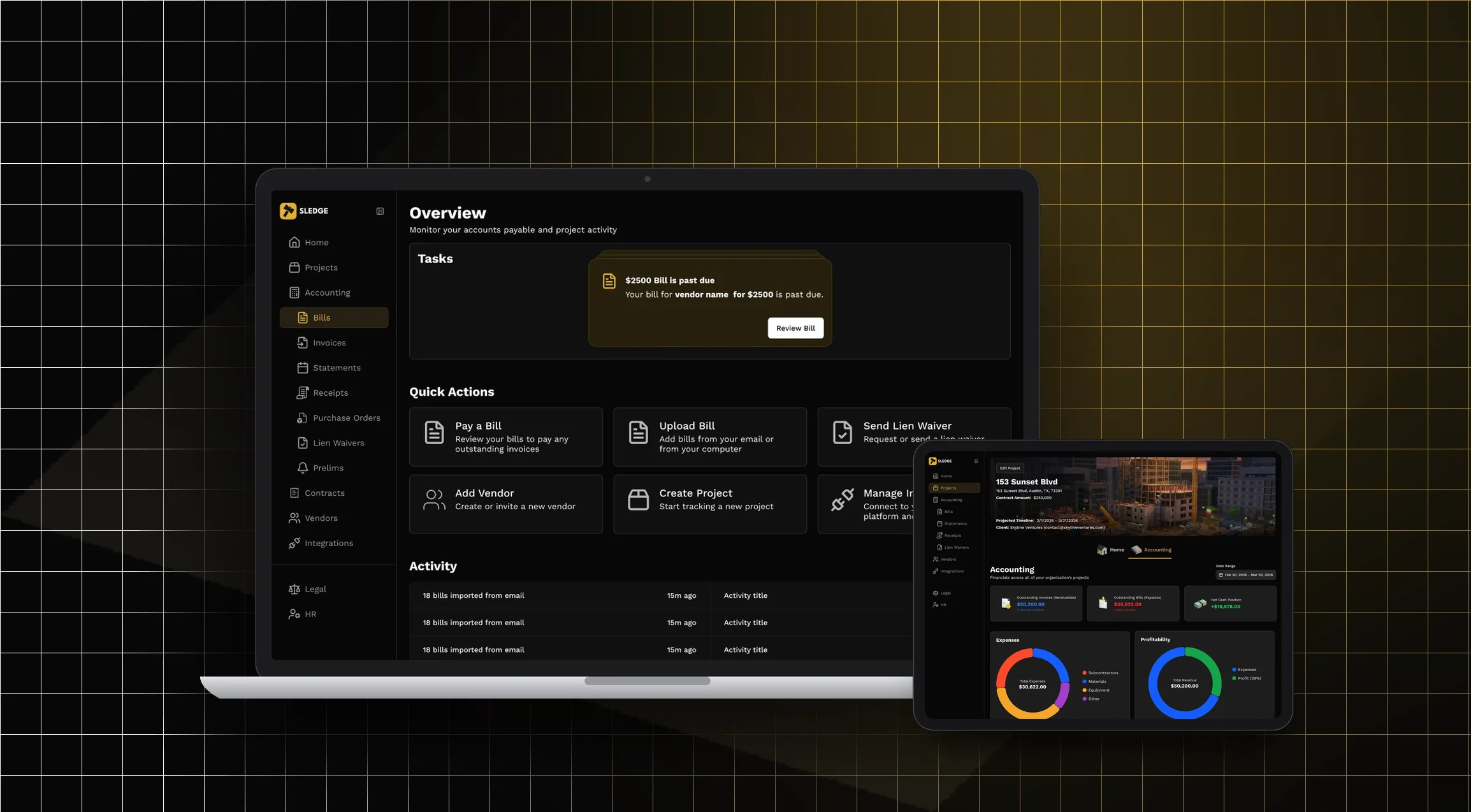
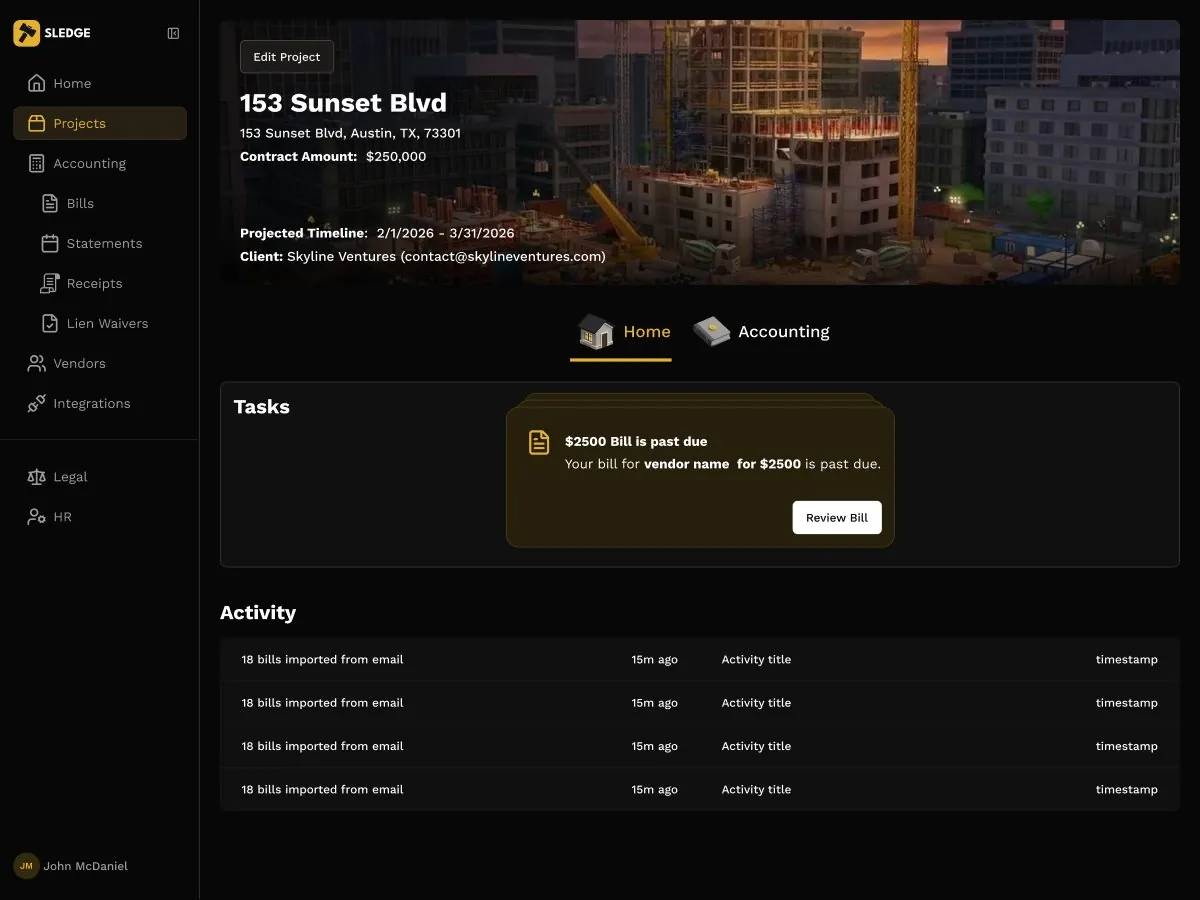
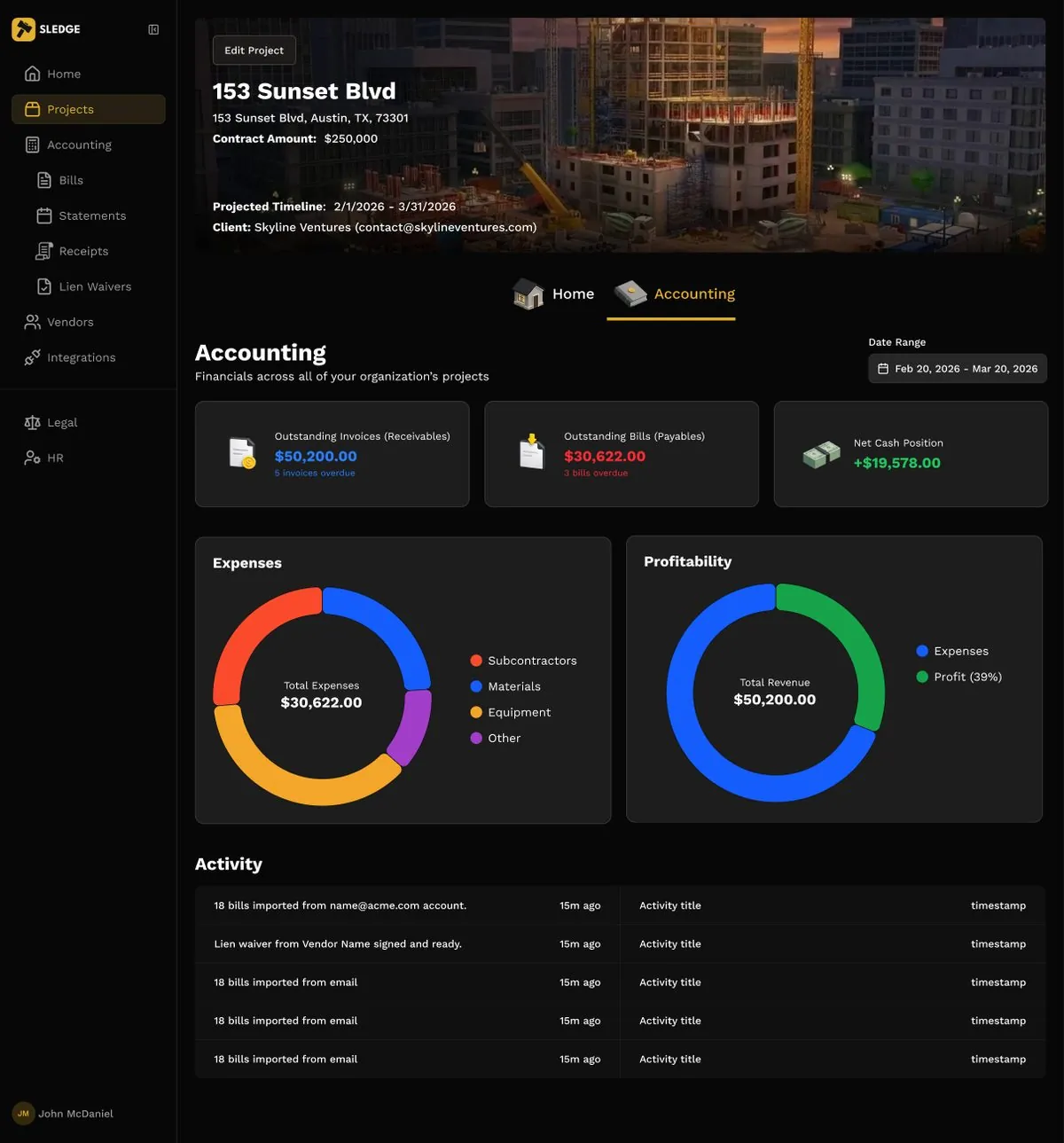
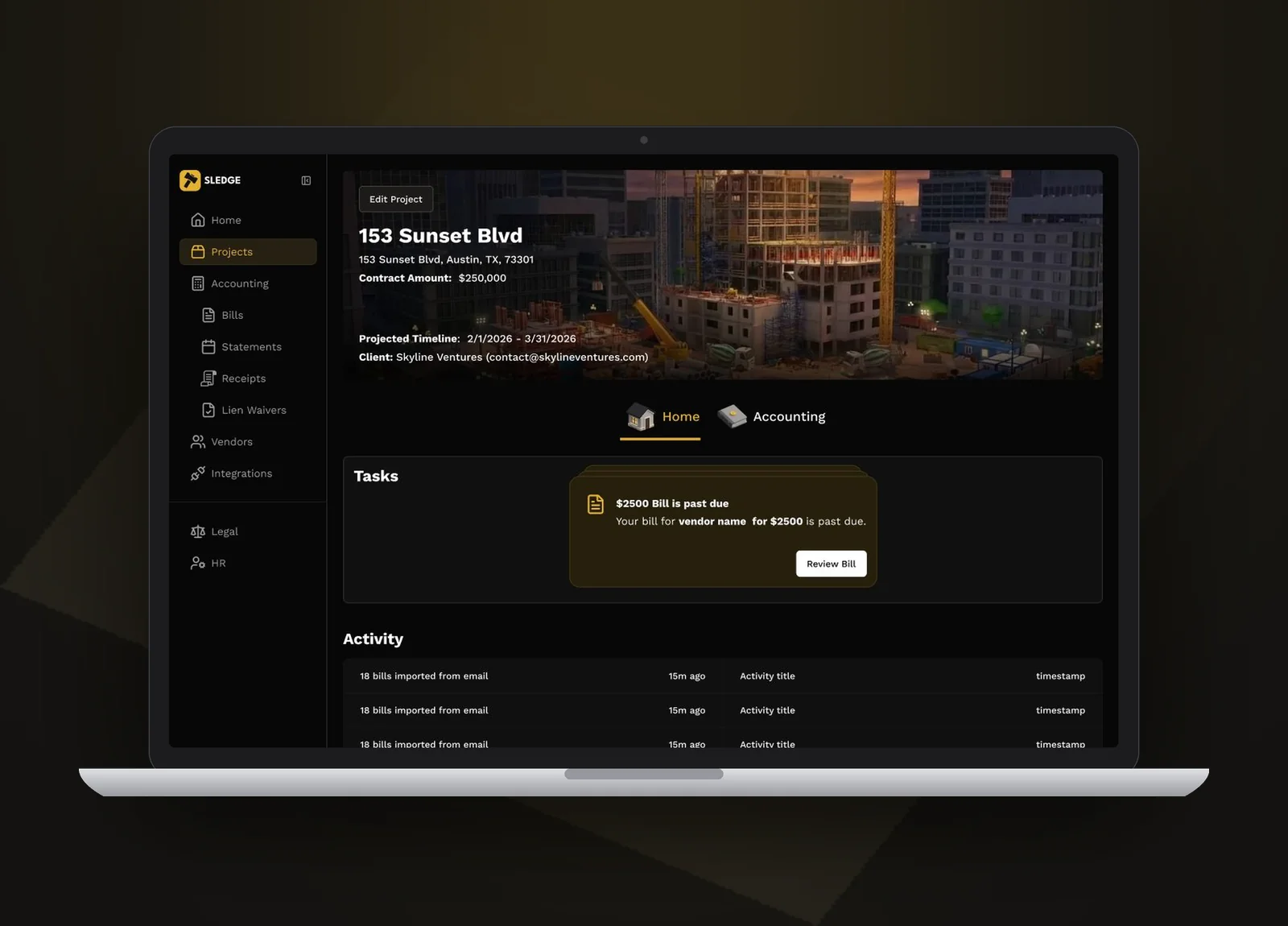
Projects sit in the middle of everything. They open as cards beside a live map, and each one has a photo banner with contract amount, client and timeline, plus Home and Accounting tabs.
From inbox to paid in four moves.
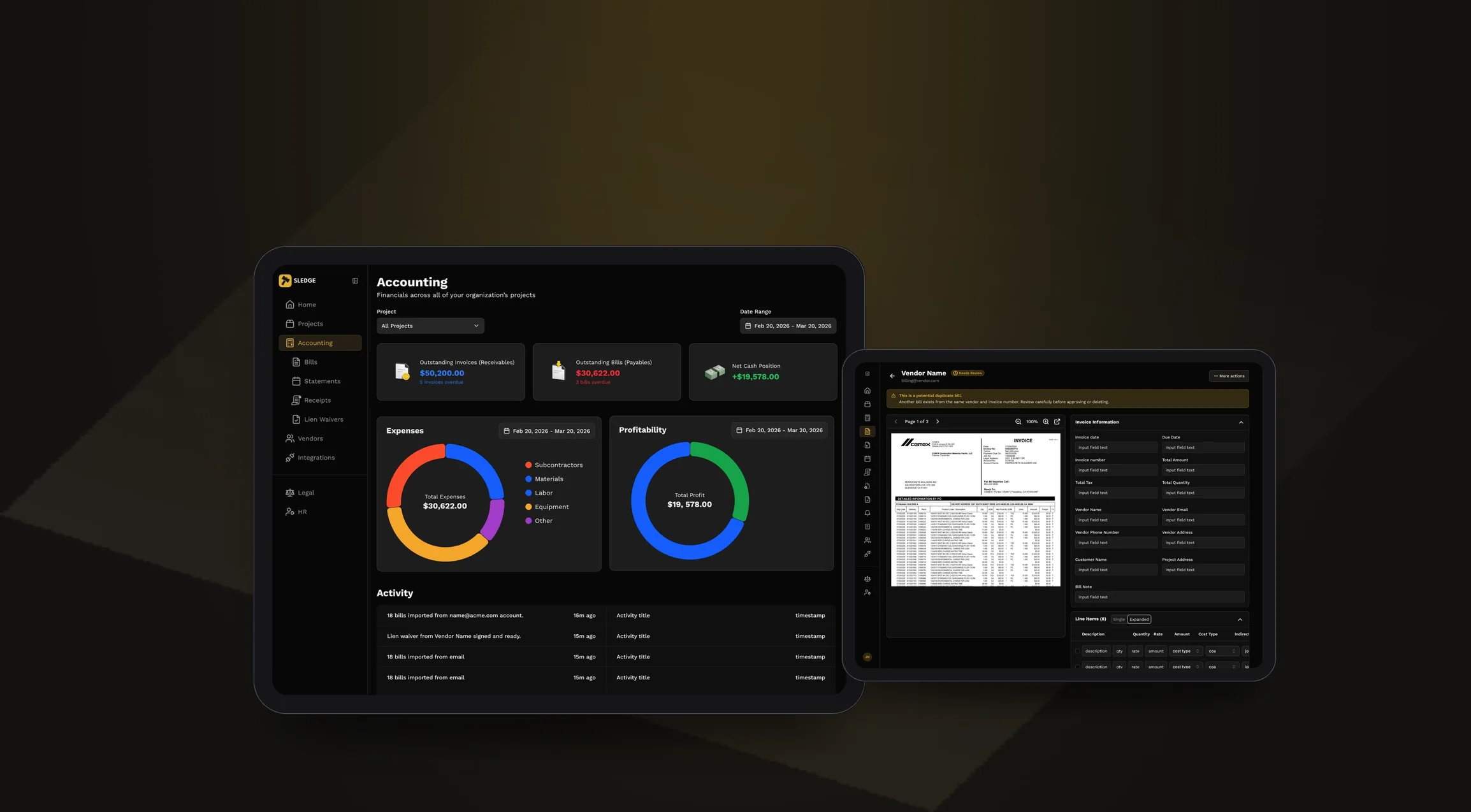
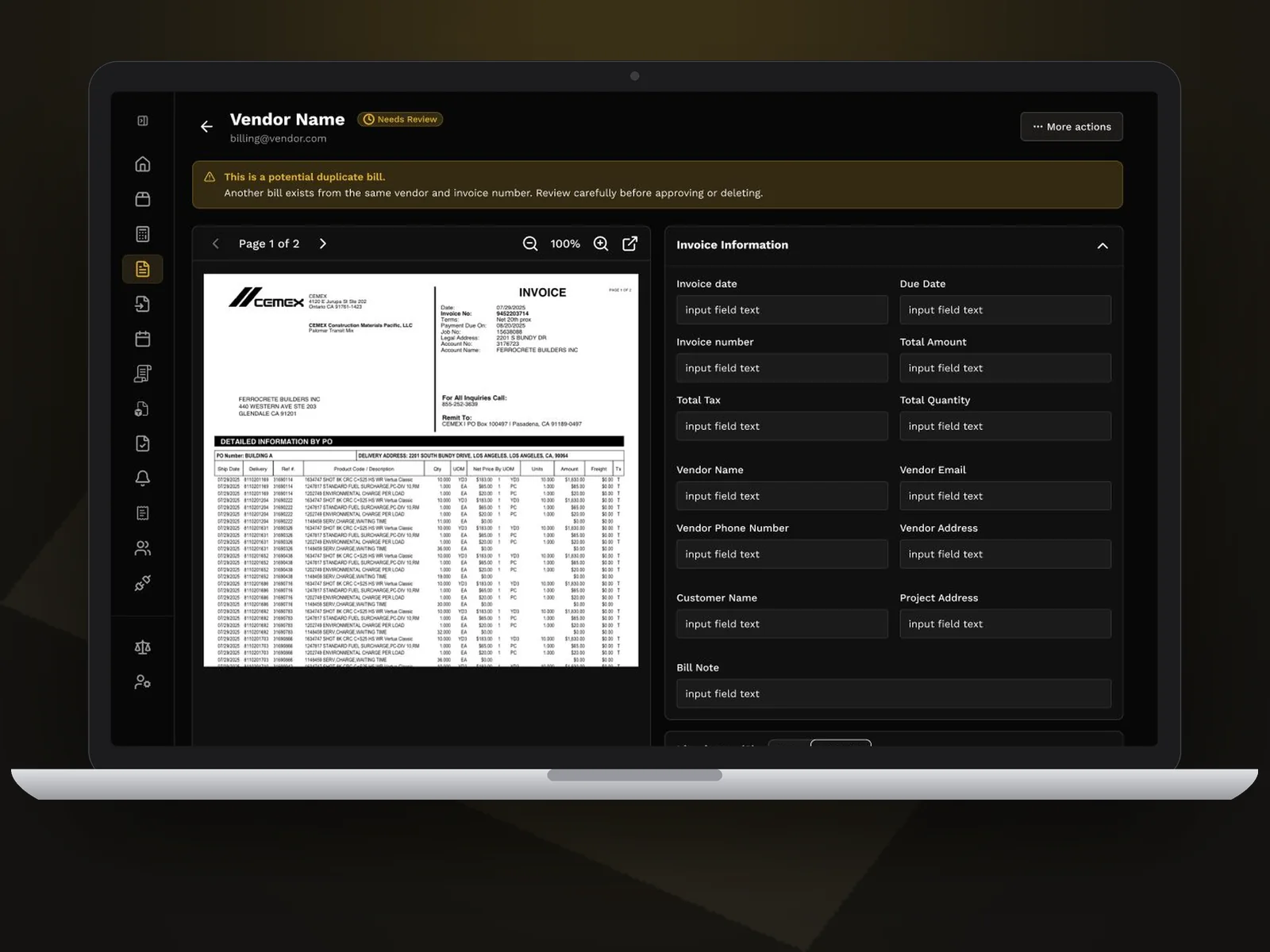
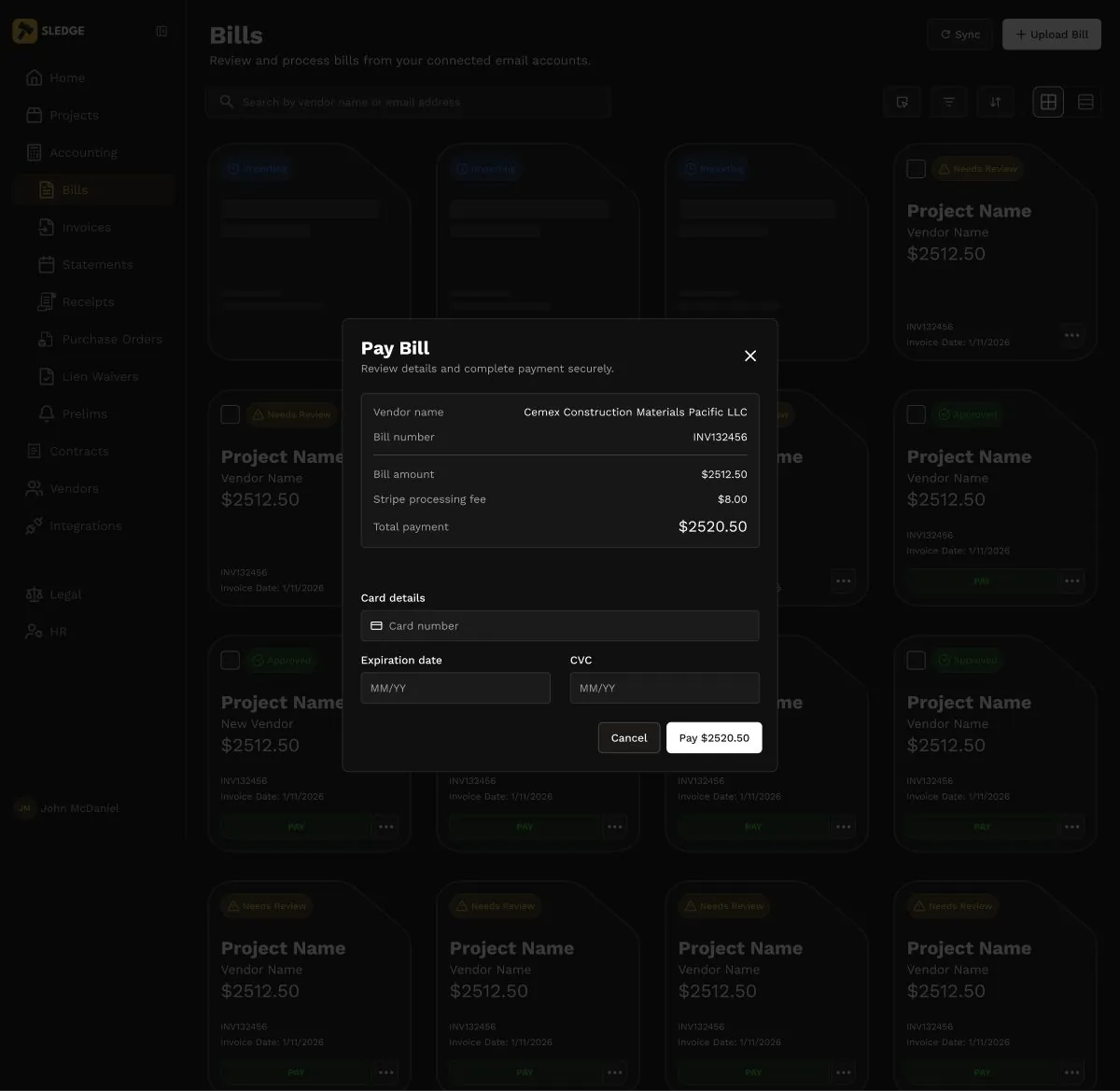
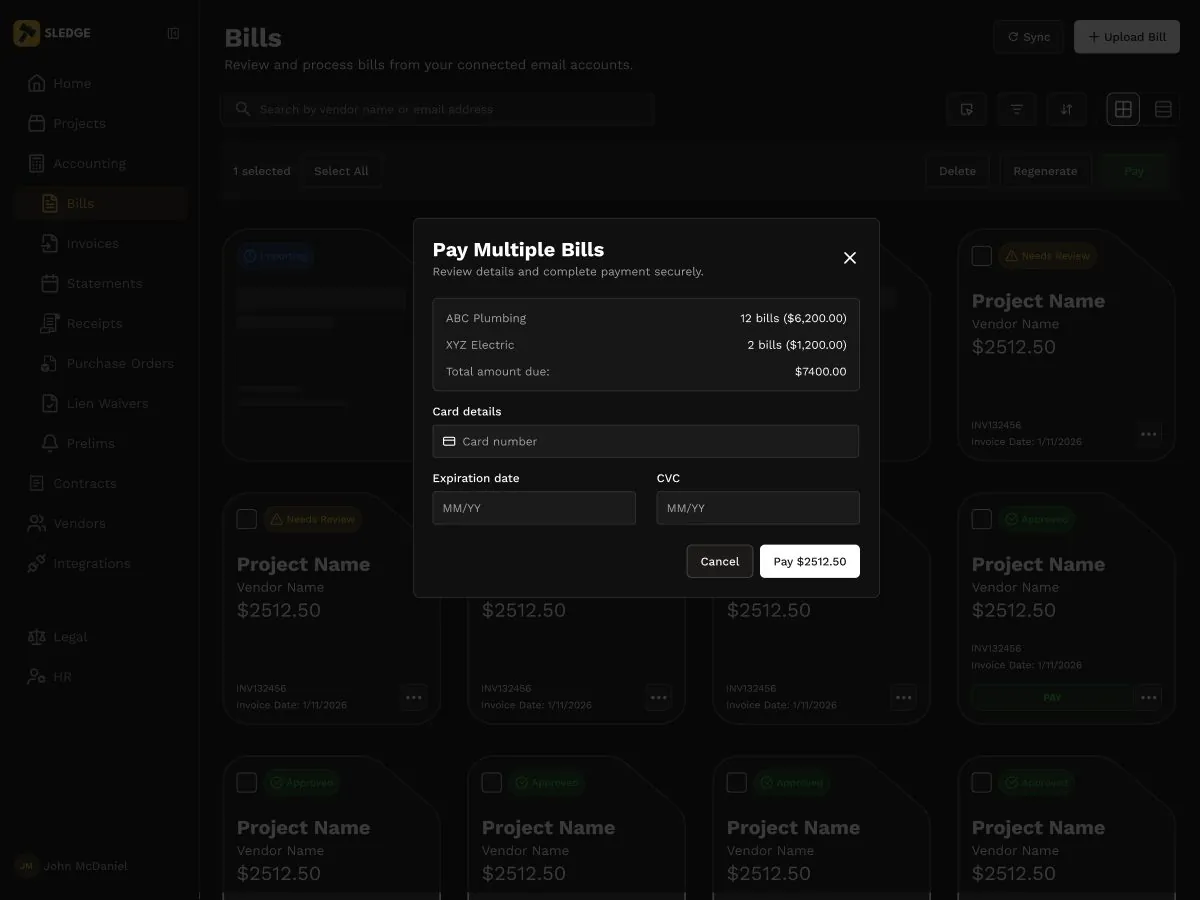
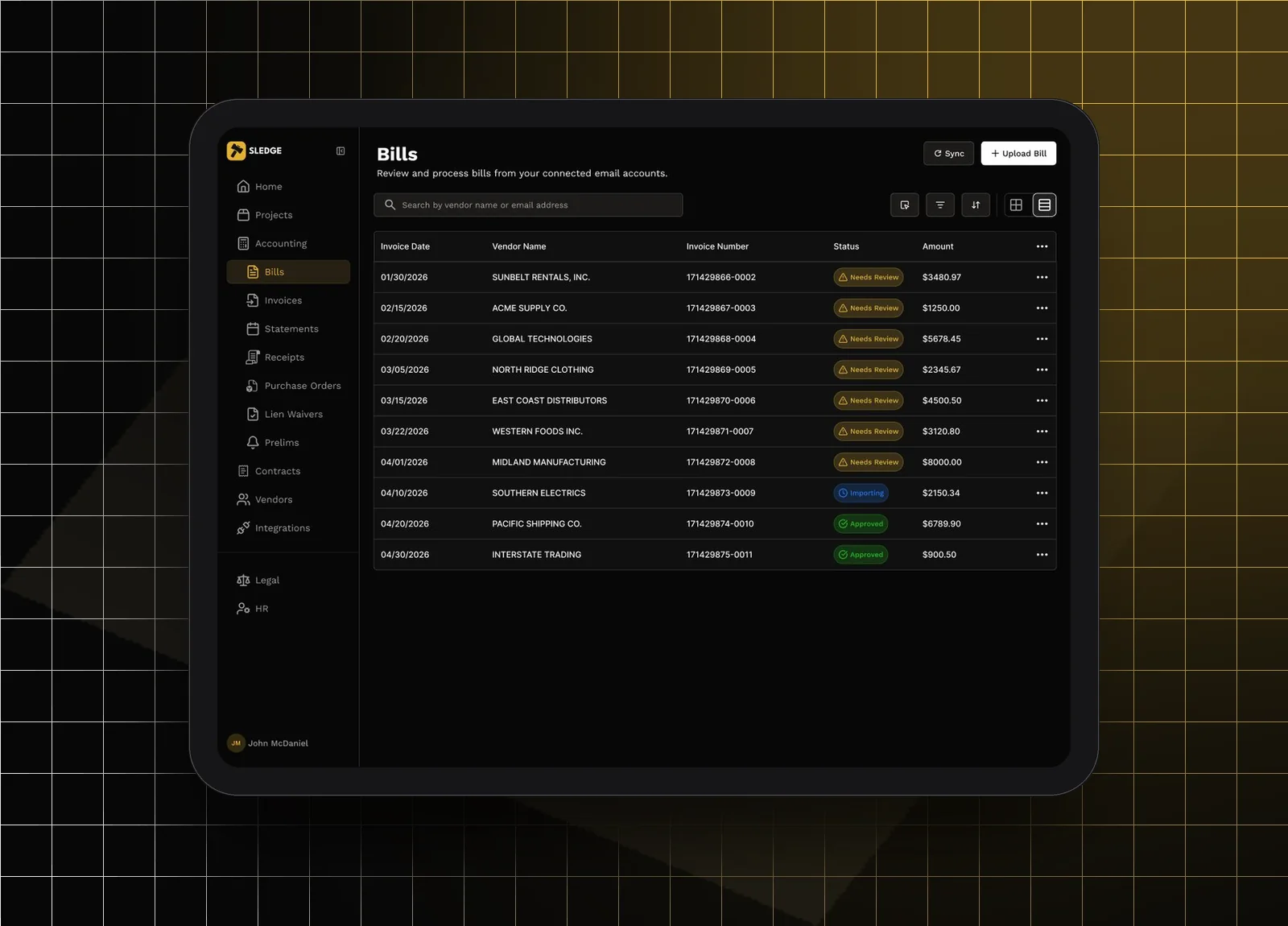
Bills move through Importing, Needs review, Approved and Paid. Review puts the PDF beside the form so nothing is retyped, duplicates are flagged before approval, and paying a batch goes through Stripe with the fee shown first.
Three things shaped
the design.
- 01
Nothing retyped
Bills are read straight out of Gmail and Outlook and checked side by side with the original PDF.
- 02
Job costs in view
Receivables, payables and net cash lead every project, with expenses and profit margin below.
- 03
Gold does the pointing
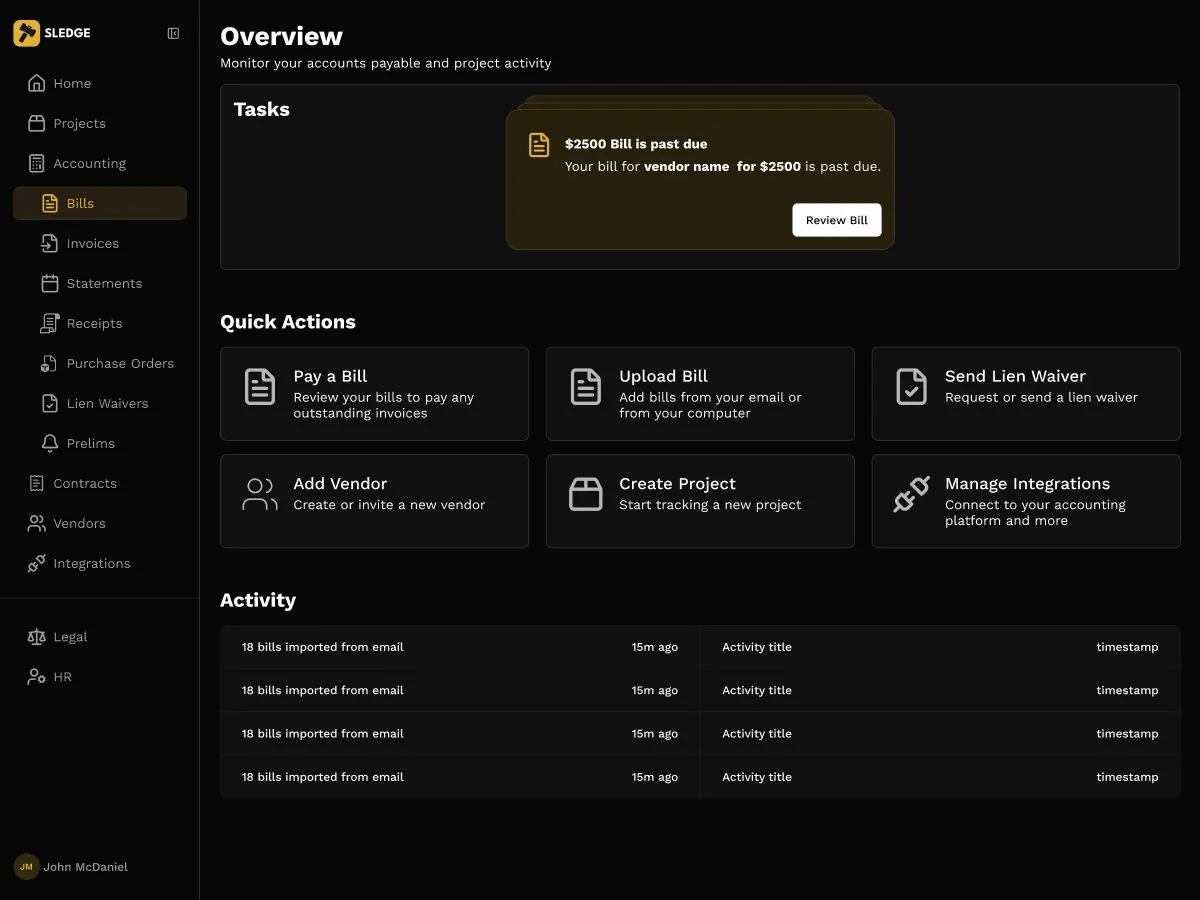
A dark UI for long sessions; one gold accent marks the active item and what needs attention.
A closer look.
Built for the desktop.
Thank you for scrolling Next — BuddyWatch